Adding Payment Methods to Powered by PayIt Apps
Manage your payment methods in the profile section of any "powered by PayIt" app. Follow the steps below to add a payment method to your profile:
- Visit a "powered by PayIt App" and in the top right corner click Log in

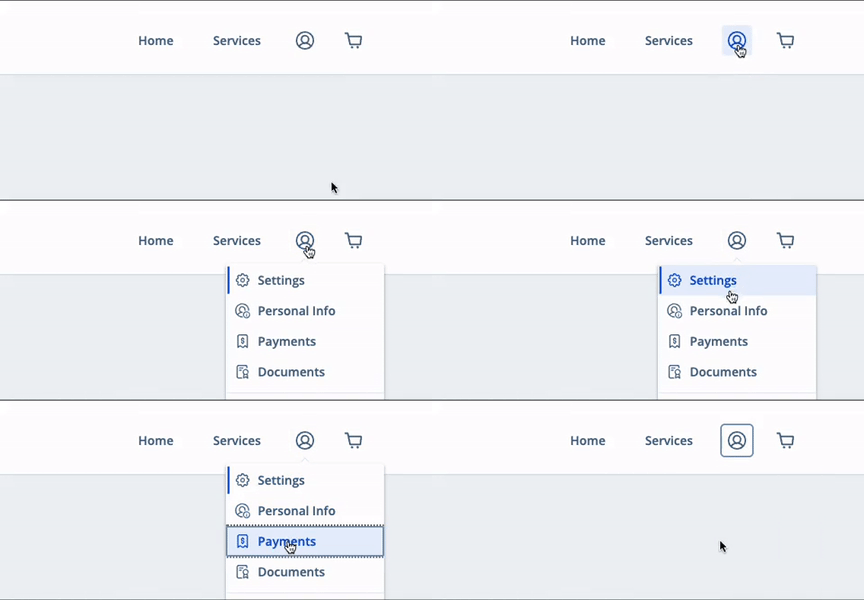
- Select the profile icon in the upper right corner and click Payments
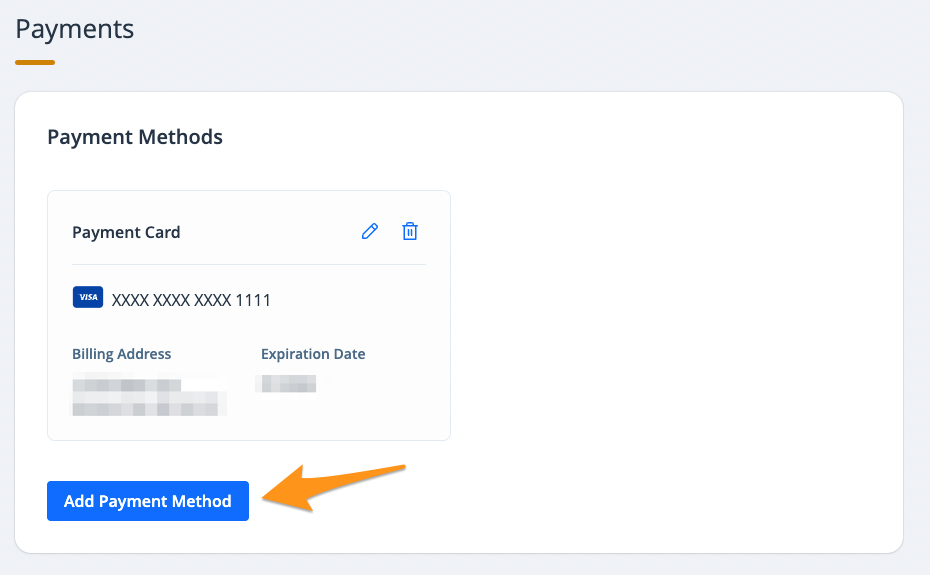
- Select "Payment Methods" and click Add Payment Method
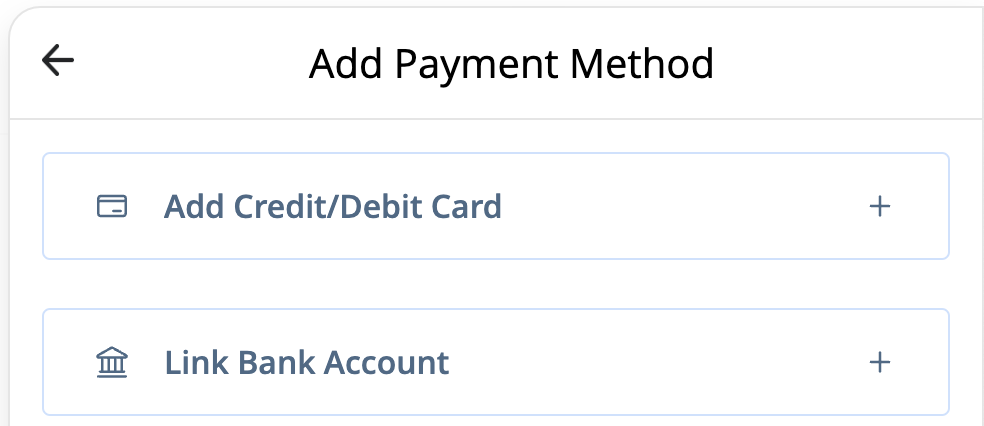
- Your payment method options will be displayed. Please note, these options can vary from from app to app. Click Add Credit/Debit Cardor Link Bank Account.
- Enter your payment information, check the box at the bottom of the page, and click the blue button to add the payment method.
Your payment method is now saved in your "powered by PayIt" profile. You will see this payment method when you go to pay a bill, and it will be available in the "Payment Methods" section of your profile. To delete a payment method from your profile, see Removing Payment Methods on Powered by PayIt Apps.